
Digital Marketing, Remarketing, Social Media Marketing
How to Install Facebook Pixel on Shopify and Track Conversions in 2020 (step by step pictorial representation)
Jude Festus
- Author
- Author
December 18, 2019
Published
Published
What is a Facebook pixel?
Facebook pixel is essentially just a code from Facebook that should be installed in websites to track vital information about the traffic generated in your website.
Installing Facebook pixels on the Shopify store will help you to track the traffic accurately and helps to retarget the users based on their activity for future retargeting ads and also to track conversions from Facebook ads. Facebook pixels works by setting up and triggering cookies on your Shopify store to track users as they interact with your store.
By following these simple instructions you can install Facebook pixels to your Shopify store and track conversion.
Let’s jump in right now!
Finding your Facebook pixel ID
For installing Facebook pixel on Shopify
1. Go to Facebook Business Manager

2. Login to your Business account
If you didn’t have a business account, you have to create one and if you already have an account skip this part and just login into your account.
For better understanding I have created a dummy business account

3. After logging into your account click on Add ad account displaying at the top center of the page ignore the other options

4. You will see other set of three options
- Add an ad account your own
- Add someone else ad account
- Create a new ad account
Click on Create a new ad account

5. Now you have to fill the options displayed
- In Store name probably fill your Ad account name or your store name it’s totally up to you
- Select the Time Zone based on your location
- Currency will automatically get selected as dollars, if you want to change into any other currencies you can change by clicking that option.

Then click next.
6. Now, you will have to select the ad account which will be used further
You will see two options
- My Business (your store name)
- Another business name
Select my business (your store name) and click create

7. Add people and set permission
Select yourself by clicking your name on the left side and allow the complete access by turning on the access icon

Next Click Assign, your account has been created

And click close.
8. As of now, you’ll be inside the ad account that you have created
Click the Hamburger icon that appears on the left right corner of the menu

You will see list of options categorized into sections
Below the Advertise section you will see Ads manager click that.


9. Click again on the hamburger icon in theads manager again.

Click on the Events manager below the Manage Business category

10. Click Get started in the Facebook pixel: Track website activities
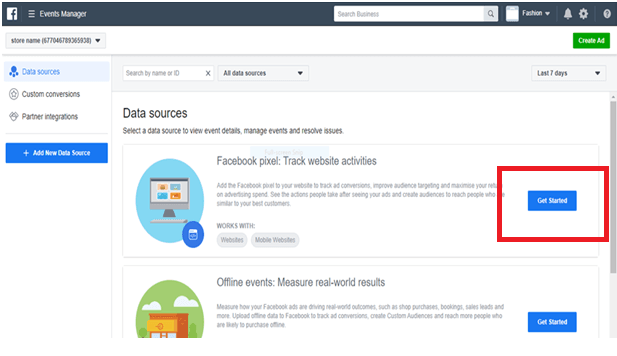
Once you were inside there you will see the options for creating a new pixel
- Type as store name pixel name
- Give your store’s website URL

Click continue
11. you will see three options displaying
- Connect a partner platform
- Manually install pixel code yourself
- Email instruction to the developer
Right click on the connect the partner platform

12. Scroll down and find the shopify platform down there select shopify (online)

13. Turn on advanced matching

Click Continue
14. You will see some set of Instruction to find and Install pixels at your shopify store page

Click continue
15. You will find the pixel code displayed in the box. Copy the code

Click continue
16. Open your shopify store page in the browser
Click on the Online store options at the left bottom of the page
Click preferences

You will find Facebook pixel and a box to paste your Facebook pixel code
17. Paste the code that you have copied at the box appearing

18. Click continue

19. Facebook pixel is Installed successfully at your shopify store.

Conclusion
By following these simple steps any one can install the pixel code at your store to track your traffic conversion and garner information about the traffic reaching your store.
Do follow these simple instructions to find your pixel code today
Find this article useful, kindly spread the word.
Jude Festus - Author
Jude Festus is an accomplished digital marketing and WordPress expert with over 18 years of professional experience. He is the founder of Demanzo, a results-driven digital marketing agency specializing in demand generation for B2B tech companies, hospitals, and SMBs. Under his leadership, Demanzo has become a trusted partner for businesses seeking growth through cutting-edge digital marketing strategies.
Related Articles

Is SEO Really Worth For SaaS Companies? Real ROI Benchmarks, Payback Timelines & Cost in 2026
AI bot traffic is exploding in 2026. Discover how bot traffic is reducing
Read more
How to Build a SaaS SEO Content Cluster That Converts to Software Trials
AI bot traffic is exploding in 2026. Discover how bot traffic is reducing
Read more
Google Developer Hub: The New Home for Google Ads Measurement
AI bot traffic is exploding in 2026. Discover how bot traffic is reducing
Read more